FREE EXPRESS SHIPPING


14-DAY NO REASON RETURN
30-DAY AFTER-SALES GUARANTEE
1-YEAR WARRANTY FOR ALL
GEN3 NTG 6.0 MBUX Upgrade Wireless CarPlay & Android Auto Module for Mercedes-Benz A-Class W177
Product Features:
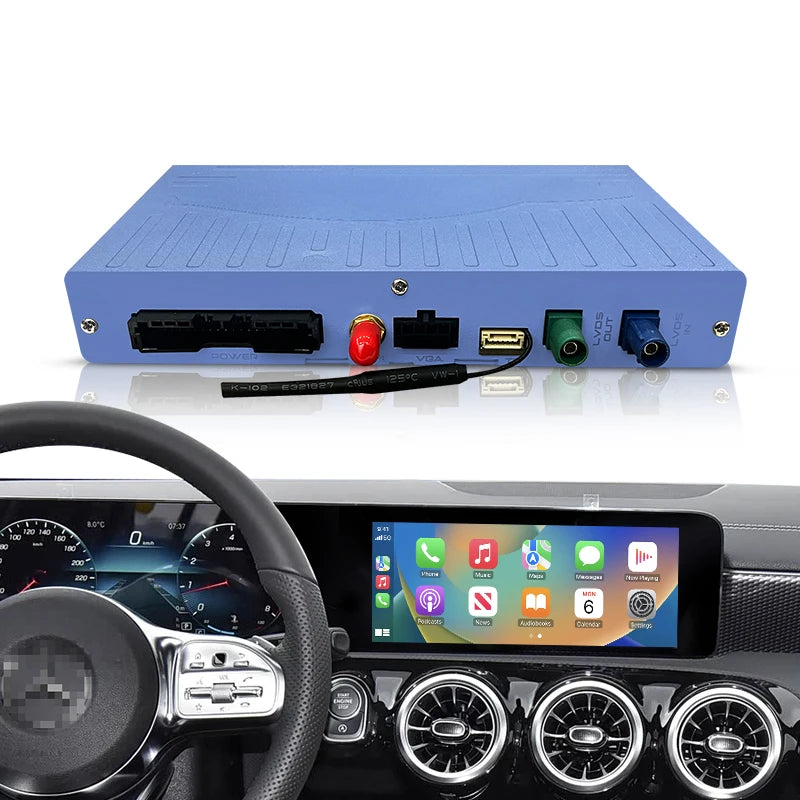
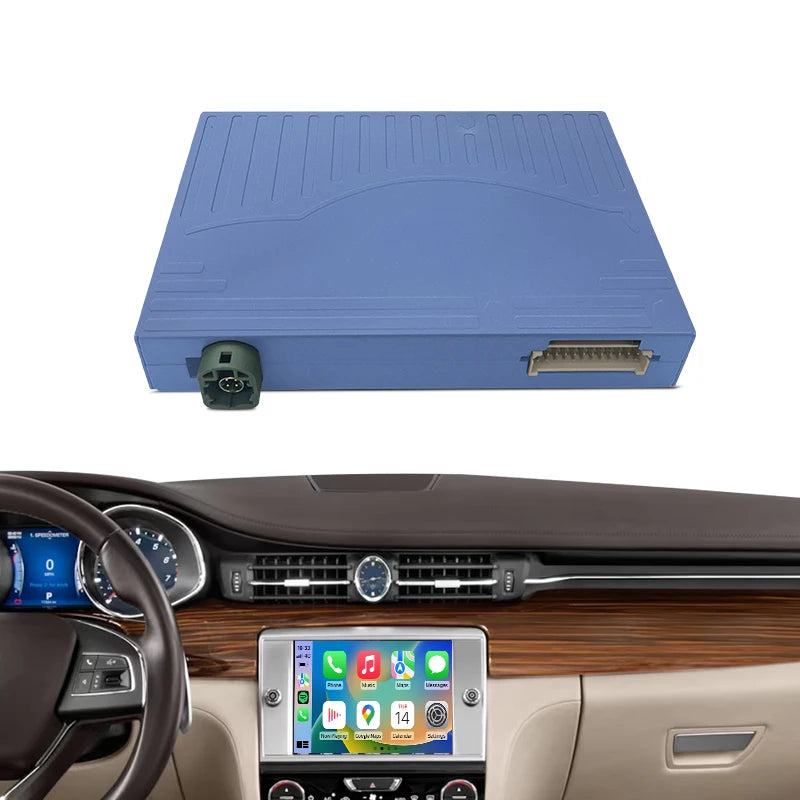
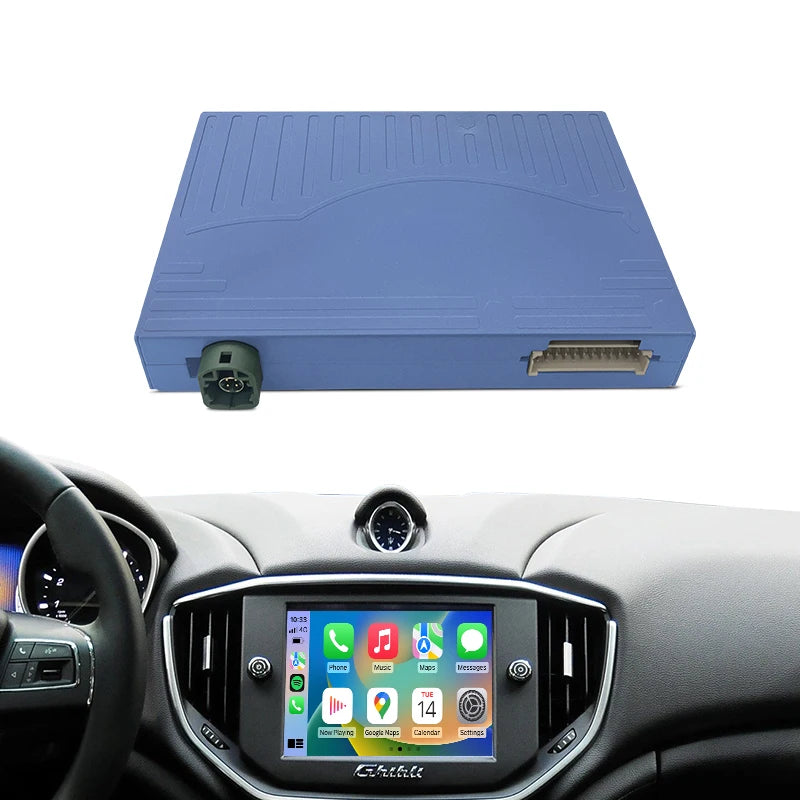
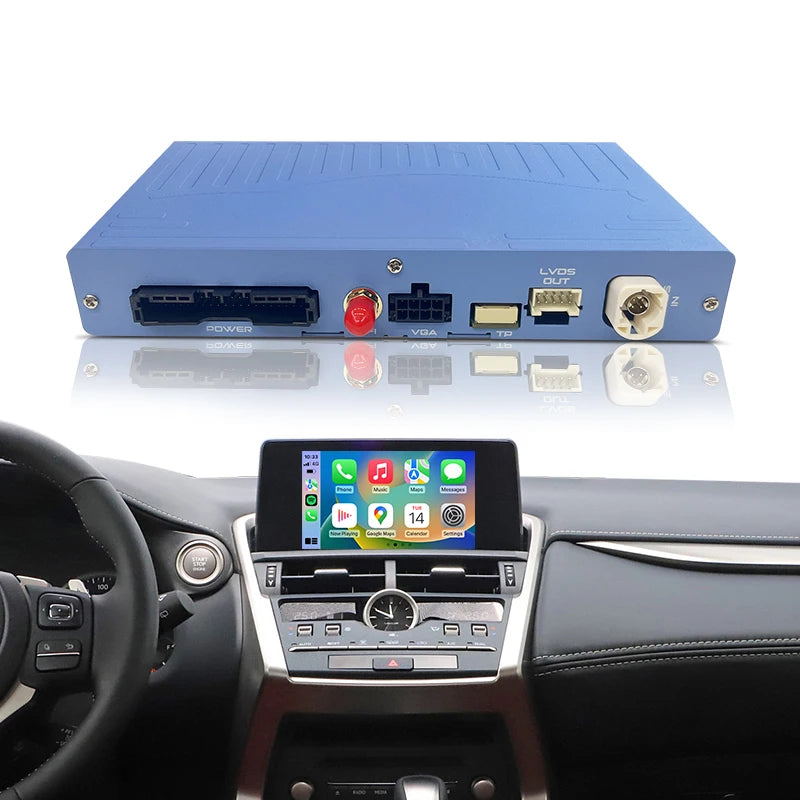
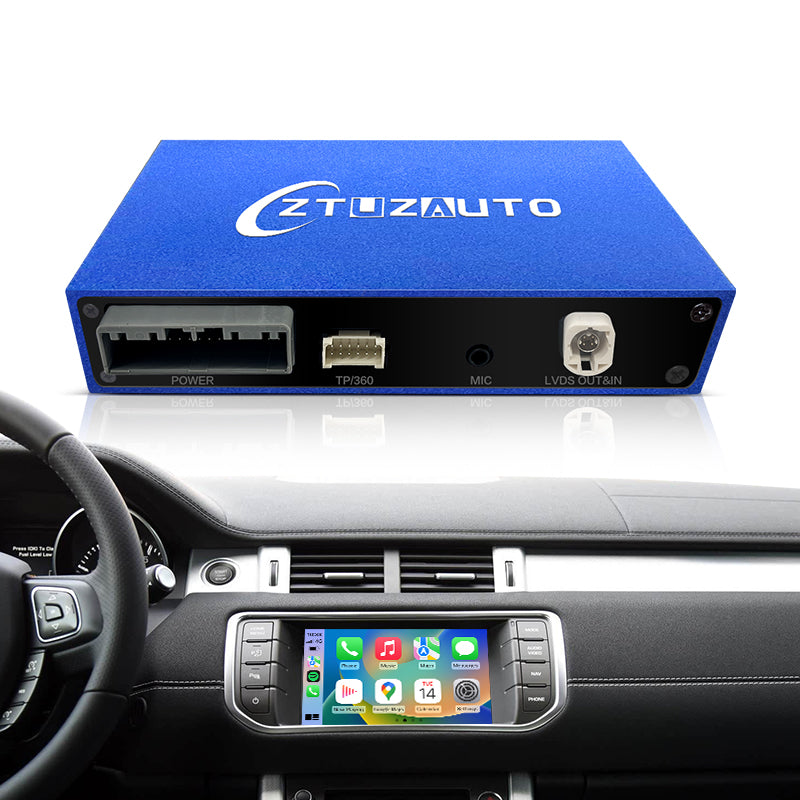
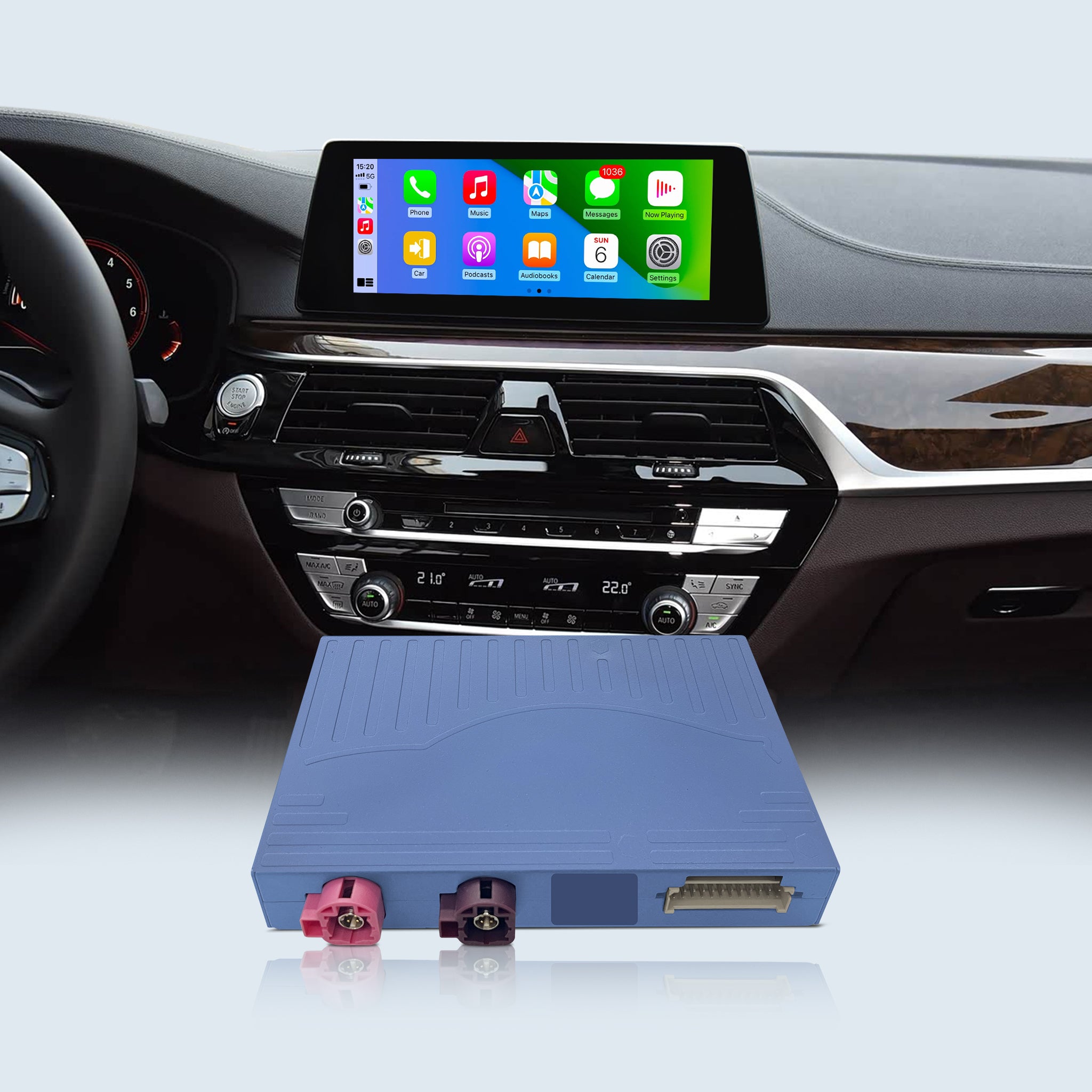
🚨 MODULE ONLY (Not a Screen Replacement): This is a hidden smart decoder box that integrates directly with your existing Mercedes A-Class dual-screen display. Bring modern wireless technology to your car while keeping your stunning MBUX dashboard 100% intact.
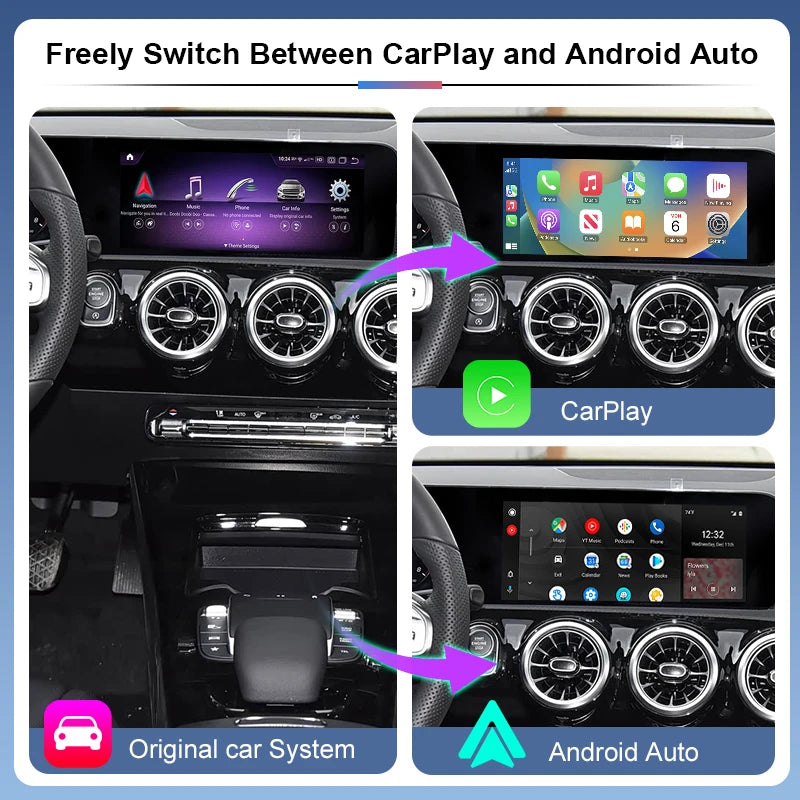
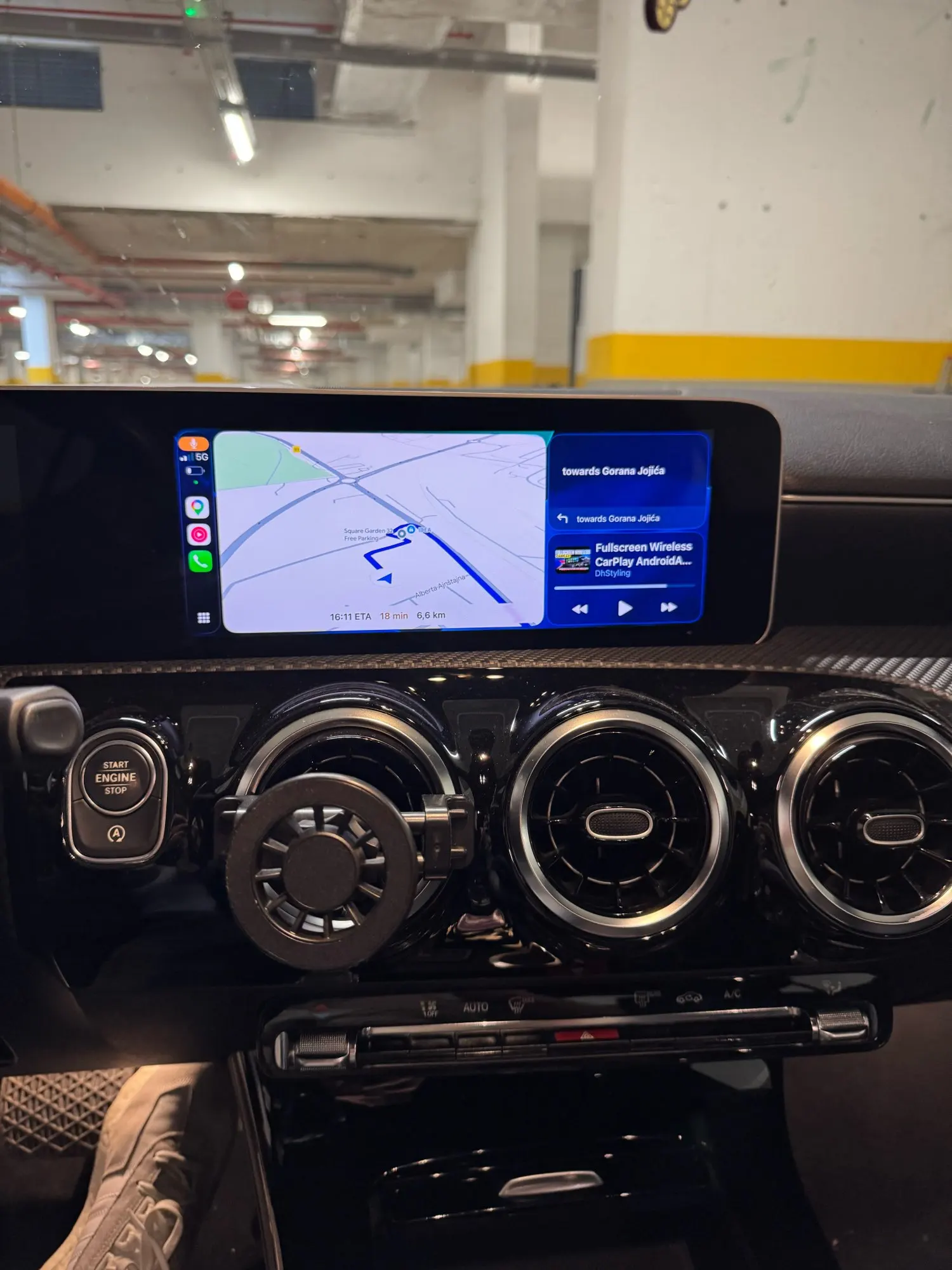
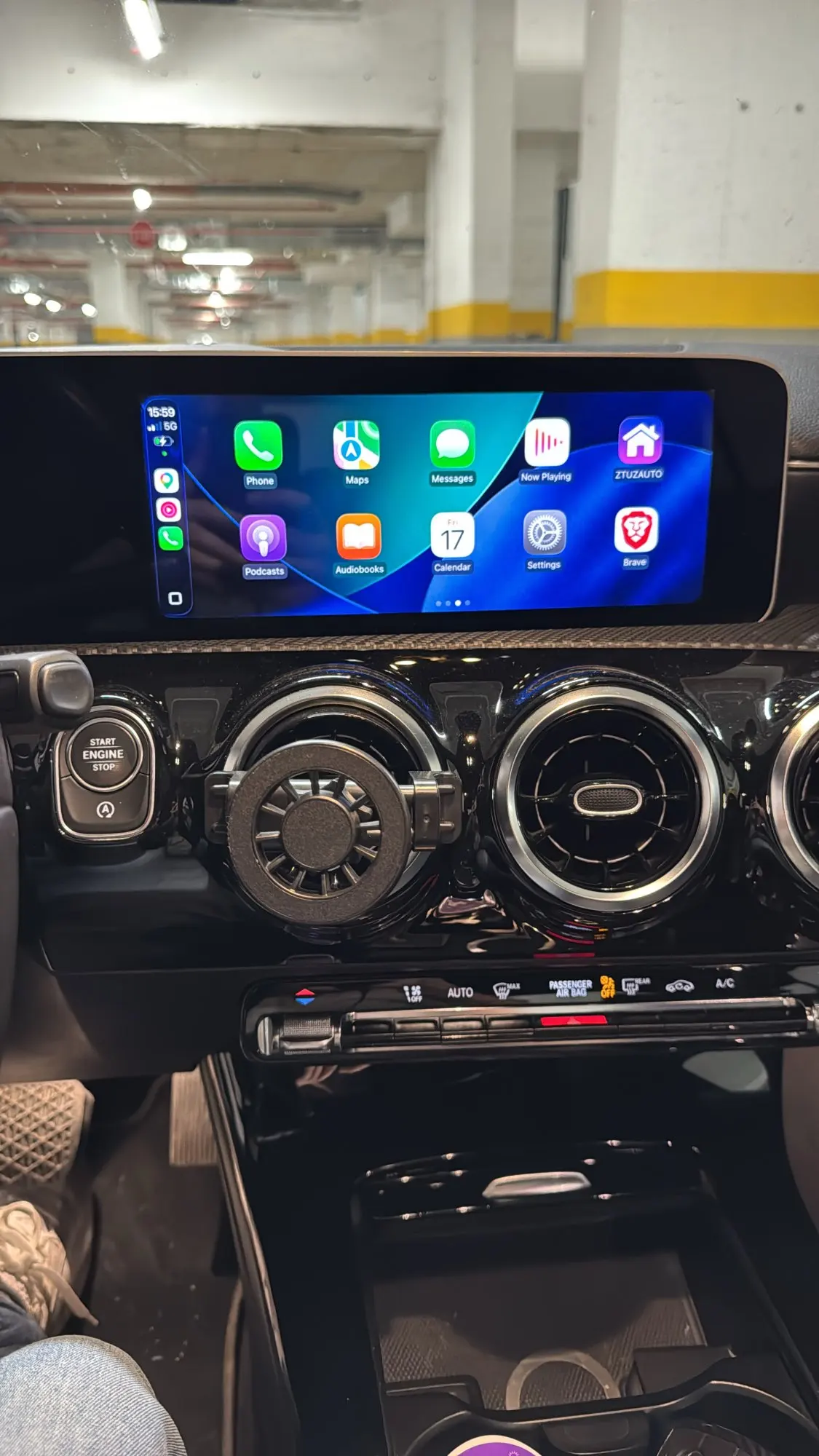
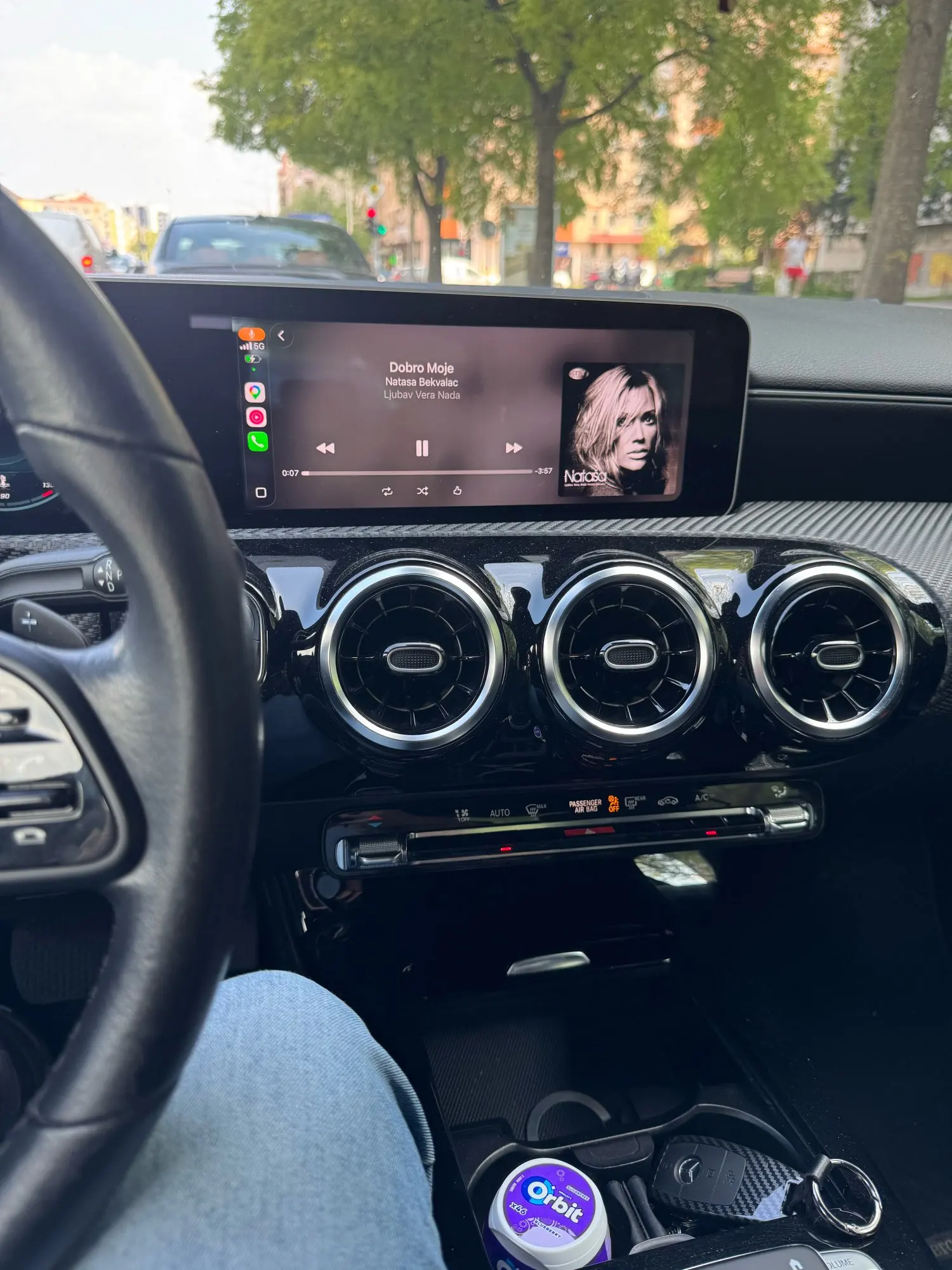
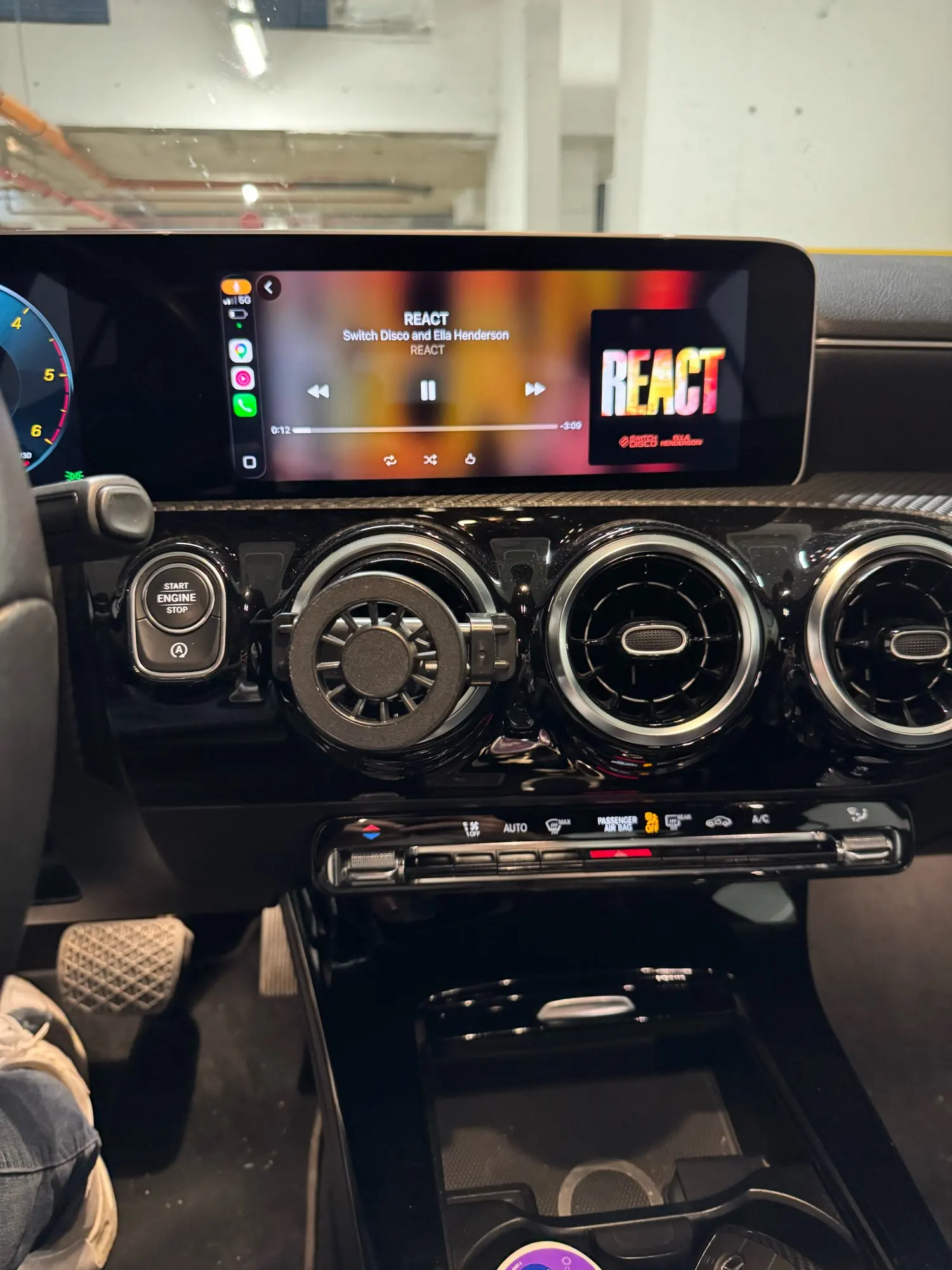
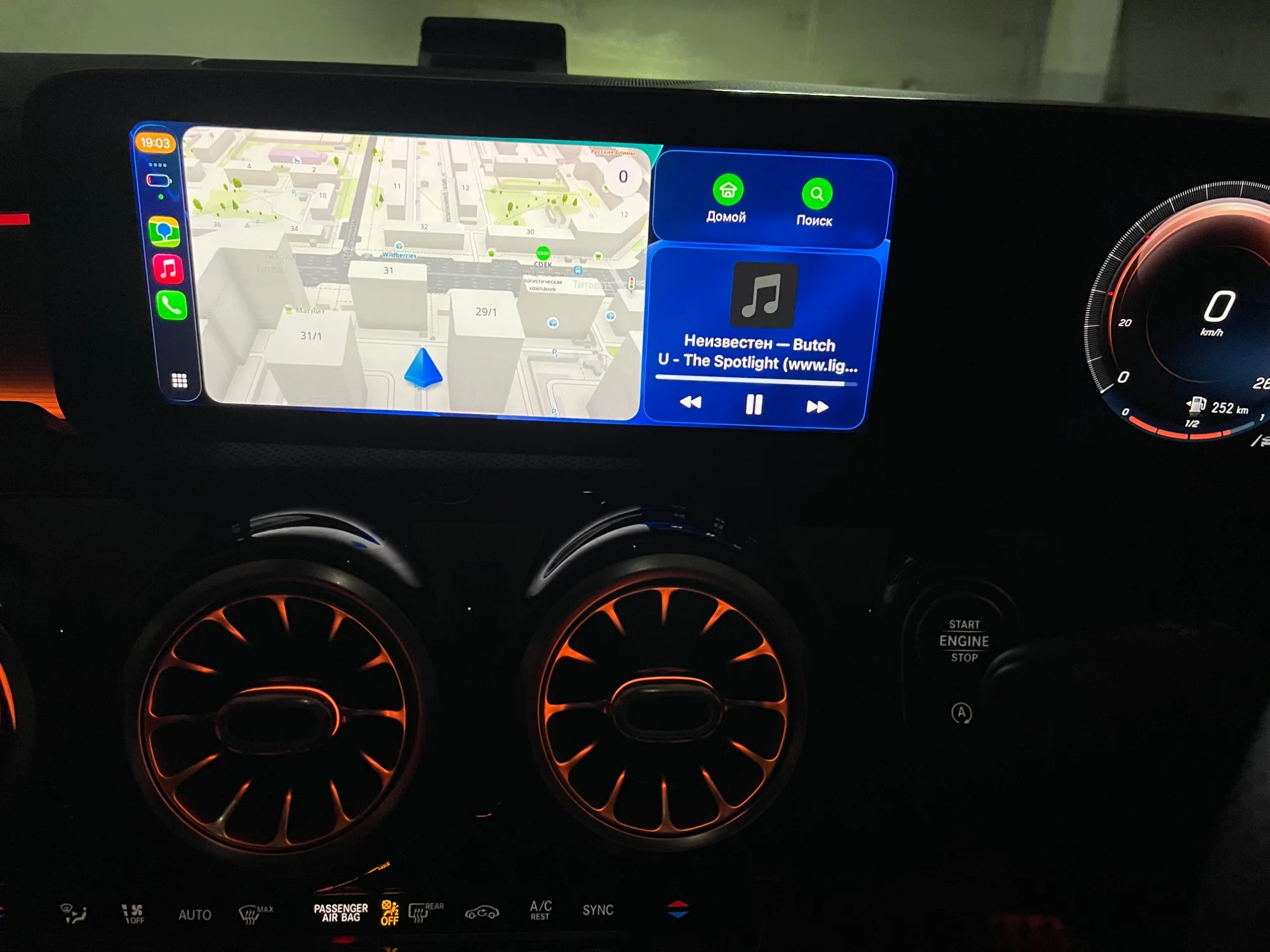
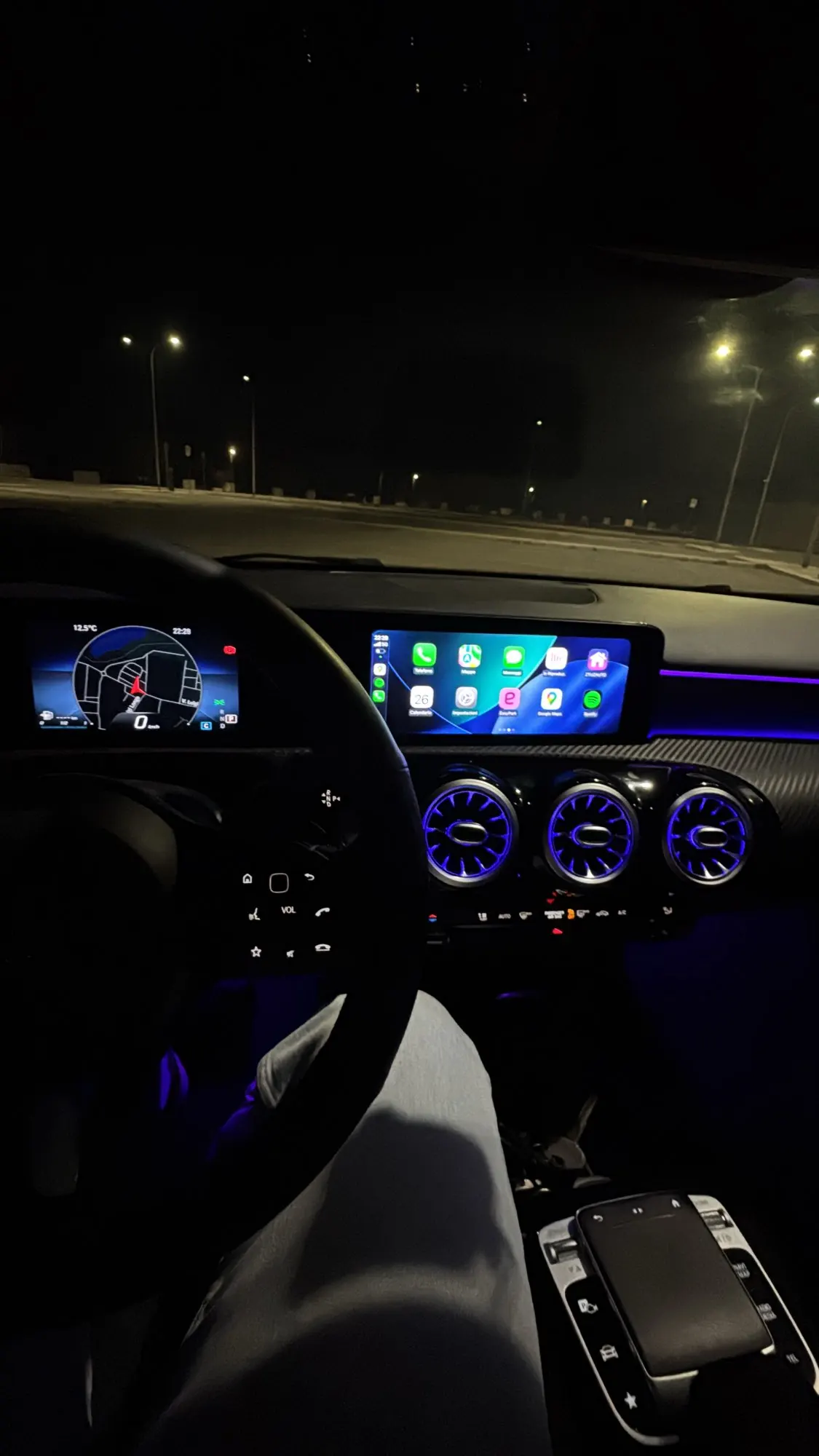
🚗 Wireless Smartphone Integration: Say goodbye to messy cables! Instantly connect your smartphone to enjoy Wireless Apple CarPlay and Android Auto for real-time GPS (Google Maps, Waze), Spotify, and hands-free voice control (Siri/Google).
👆 Supports Factory Touchscreen & Touchpad: You lose absolutely nothing! This module flawlessly supports your original MBUX touchscreen, center console touchpad, steering wheel buttons, and factory reverse/360 cameras.
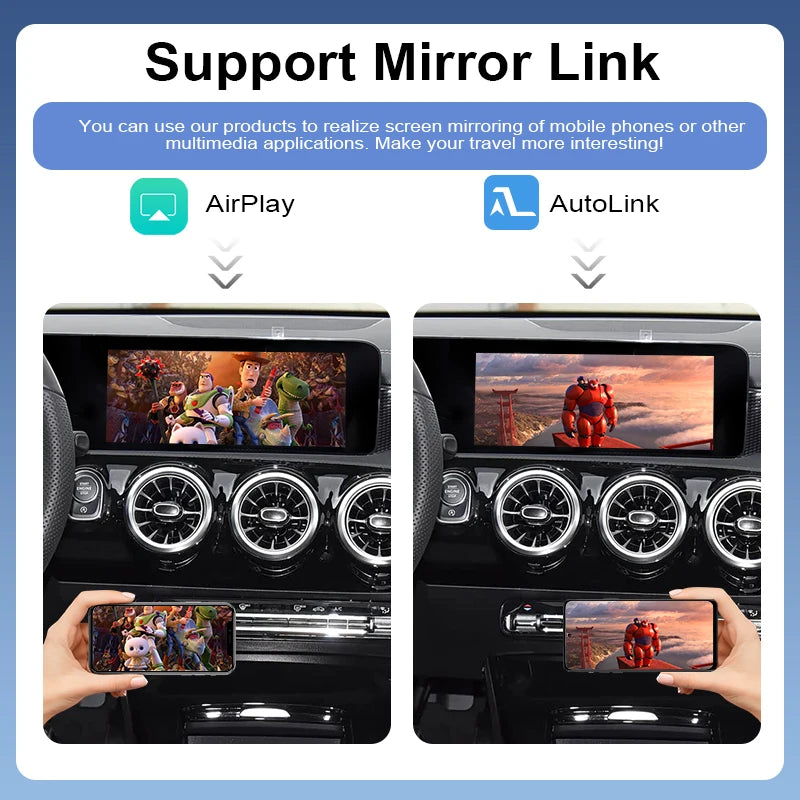
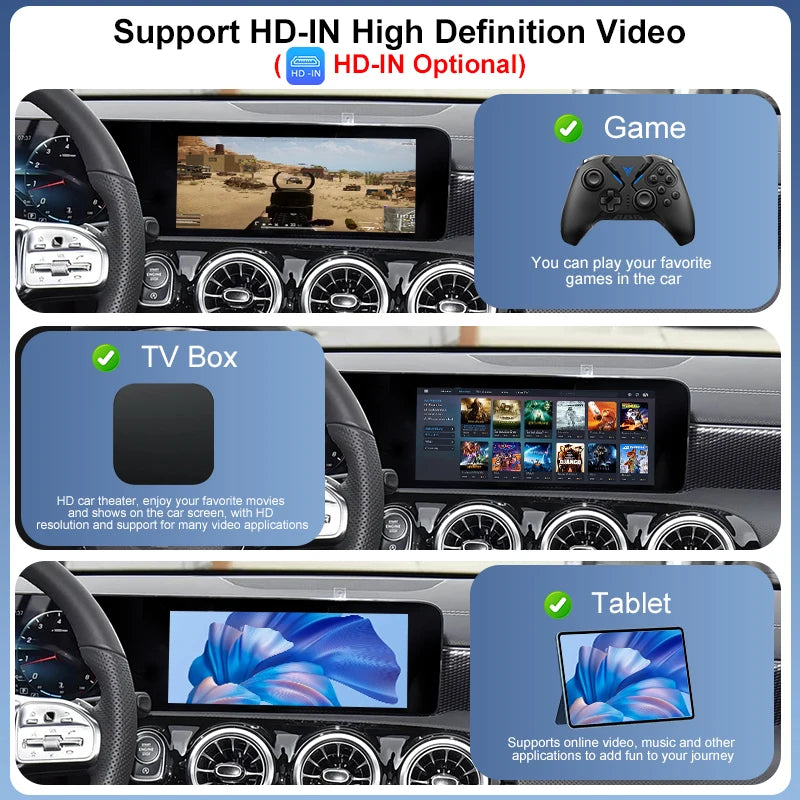
📱 Screen Mirroring (AirPlay & MirrorLink): Easily cast your favorite videos, photos, and apps directly from your phone to your Mercedes' factory display while parked. Turn your A-Class into a private theater!
🛠️ 100% Plug & Play Installation: Designed for a secure, non-destructive DIY upgrade. The custom harness plugs directly into your factory radio unit with NO wire cutting or splicing. Your car's original warranty remains completely unaffected.
Couldn't load pickup availability
- Description
- FAQs
- Reviews
- About Upgrade
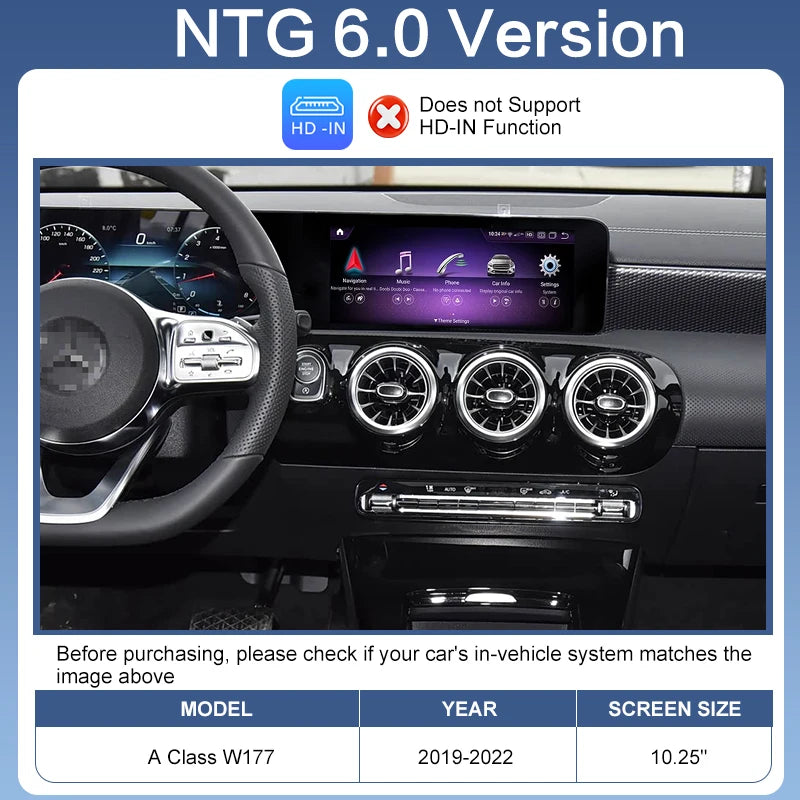
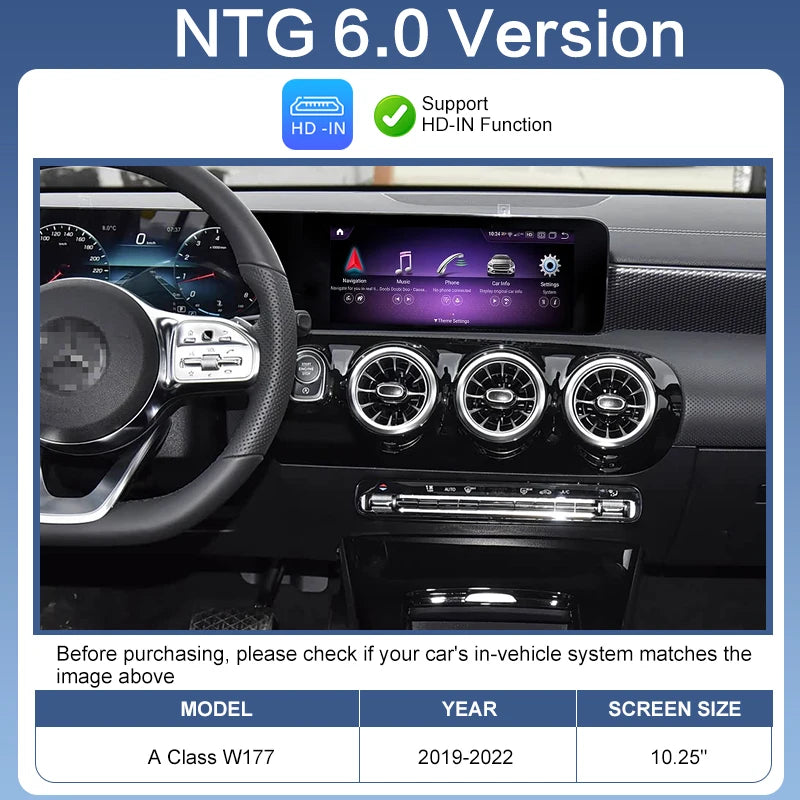
⚠️ CRITICAL COMPATIBILITY CHECK (Please Read Before Buying):
To ensure a 100% perfect fit, please verify your car model, year, and screen size before placing an order.
-
Supported Model: Mercedes-Benz A-Class (Chassis: W177 / V177)
-
Supported Years: 2018, 2019, 2020, 2021, 2022
-
System Type: Original NTG 6.0 (MBUX) System.
🚨 SCREEN SIZE REQUIREMENT (CRUCIAL):
-
✅ IT FITS: ONLY compatible with the factory 10.25-inch Dual-Screen Touchscreen setup.
-
❌ DOES NOT FIT: If your car is equipped with the basic 7-inch small dual-screen setup, this module will NOT work for your car!
💬 Frequently Asked Questions & Troubleshooting
Q1: How do I get sound to work through the CarPlay module?
A: There are two methods to route the audio, depending on your preference:
- Method 1 (Via AUX): Disconnect the Bluetooth connection between your phone and the original car. Then, go to your Volvo's original media menu and select "AUX" as the audio source.
- Method 2 (Via Bluetooth - No AUX needed):Go to the CarPlay module menu: Settings → Factory Settings (Password: 8888).Turn OFF the "Link Split Audio" option and click OK to reboot.Disconnect your phone's Bluetooth from the original Volvo system.In your Volvo's original media settings, pair and select the module's Bluetooth (named "DC_AUDIO_BT") as the music and phone sound source.
Q2: What should I do if the volume is too low or unbalanced (For DC_Audio Users)?
A: If you are using the DC_Audio Bluetooth method and the sound is not balanced, please try the following:
- Method 1: Go to Settings → General and increase the system volume.
- Method 2 (If still not balanced):Go to Settings → Factory Settings (Password: 8888).Scroll to the very last option on the menu.Change the volume parameter from 0.5 to 1.Click Save and Reboot.
Q3: How do I fix the echo issue during phone calls (The other party hears an echo)?
A: This is a quick setting adjustment for ZTUZAUTO GEN3 modules.👉 Solution: Please go to Menu → Settings → Car → Microphone Mode, and change the option to "Auto Select".
Q4: How do I adjust the Android Auto resolution or enable the Air Conditioning pop-up window?
A: You can enable these advanced display features in the factory settings:
- Go to Settings → Factory Settings (Password: 8888).
- For Android Auto Resolution: Turn ON the "Turn on Android Auto Resolution Adaptation" option.
- For Air Conditioning Display: Turn ON the "Show AC float window" option.
- Click Save and Reboot the system for the changes to take effect.
Q5: What should I do if the screen shows "No Signal," "Black Screen," or "Abnormal Display" after switching to CarPlay?
A: Please don't panic! This is usually a simple connection or setting issue. Check the following:
- LVDS Cable: Ensure the LVDS cable is connected correctly according to the schematic. The LVDS connection MUST be routed to the main head unit (host), NOT the transfer screen.
- Pin Check: Unplug the LCD cables and check if any pins inside the ports are bent or not making proper contact.
- DIP Switches: Verify that the DIP switch settings on the module box perfectly match your vehicle model according to the manual. (Note: Always keep the power ON when changing DIP switch settings).
- If everything is correct and the issue persists, please contact our support team.
Q6: What precautions should I take during installation?
A:
- Always Power Off: Ensure your car is completely turned off before disconnecting or connecting any wiring harnesses.
- Test Before Reassembly: After plugging everything in, lock the car for a few minutes, then start it to test all functions (sound, display, steering wheel buttons). Do not reassemble the dashboard panels until you confirm everything works perfectly!
Q7: I need technical support. What information should I provide?
A: We are always here to help! To solve your problem quickly, please collect the following information before contacting us via WhatsApp or email:
- Your Order ID & Car Model / Year.
- Your original screen size (e.g., 7-inch).
- A clear picture of your current DIP switch setup on the box.
- A clear picture showing how your LVDS cables are connected.
- A picture of the module's System Version (Go to CarPlay menu → Settings → About).
Q8: Does the module support ALL the original physical car buttons and knobs?
A: Our module is optimized to support the essential and most frequently used factory controls (such as the main control knob, touchpad, and steering wheel buttons). While it does not map to every single physical button on your car's dashboard, it perfectly integrates with the necessary controls to ensure a smooth, fully functional, and effortless CarPlay/Android Auto experience.
Android Auto resolution adjustment : https://youtu.be/HcQkuh5fCRo
After the upgrade is complete, you need to enter the module settings →Password:8888→ turn on the "Turn on Android Auto Resolution Adaptation " option → Save → Reboot
Air conditioning pop-up display:
After the upgrade is complete, you need to enter the module settings →Password:8888→ turn on the "Show AC float window " option → Save → Reboot
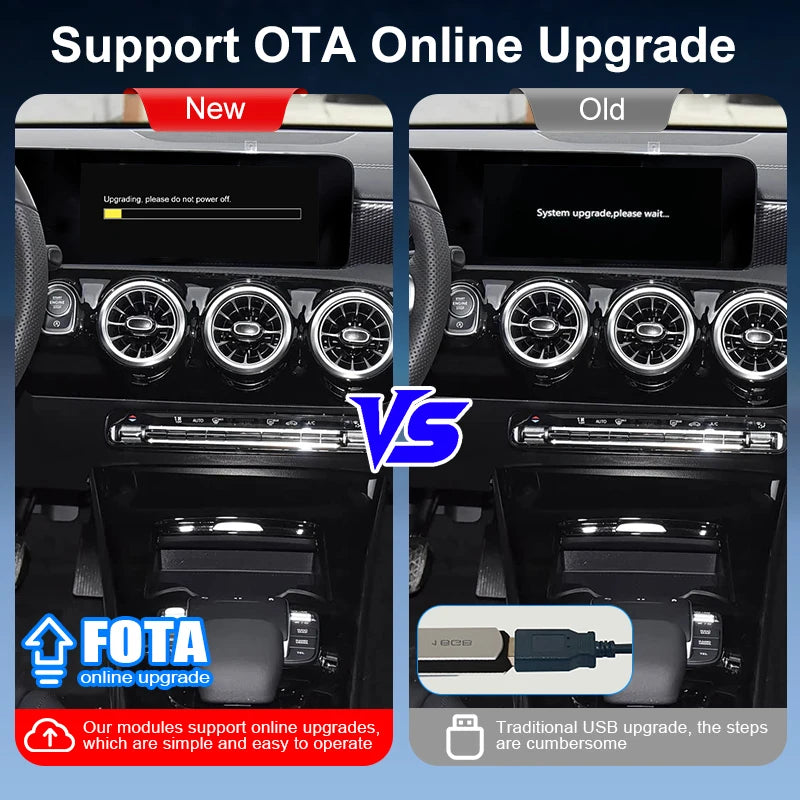
OTA Update Guide- ZTUZAUTO 3rd Gen CarPlay :
https://www.youtube.com/watch?v=ypzKC6BXMck
ZTUZAUTO 3rd Gen CarPlay upgrade steps :
Step1 : Navigate to [Settings] > [WIFI] and connect to the same wireless network as your phone.
Step2 : Access the [About] page, then select [System Upgrade] to enter the OTA upgrade interface. A QR code will be automatically displayed. If not, select [Refresh QR Code] to reload.
Step3 : Scan the QR code with your phone to open the upgrade page, which will indicate whether a new version is available or the device is already up to date.
Step4 : After completing the upgrade steps on the phone, the device will verify the upgrade file and automatically launch the corresponding upgrade program.
- 5 stars: 6 (100%)
- 4 stars: 0 (0%)
- 3 stars: 0 (0%)
- 2 stars: 0 (0%)
- 1 star: 0 (0%)
Super product! The seller was constantly in touch, explained how to install it correctly, and sent videos and photos. I'm satisfied, this is the best store!
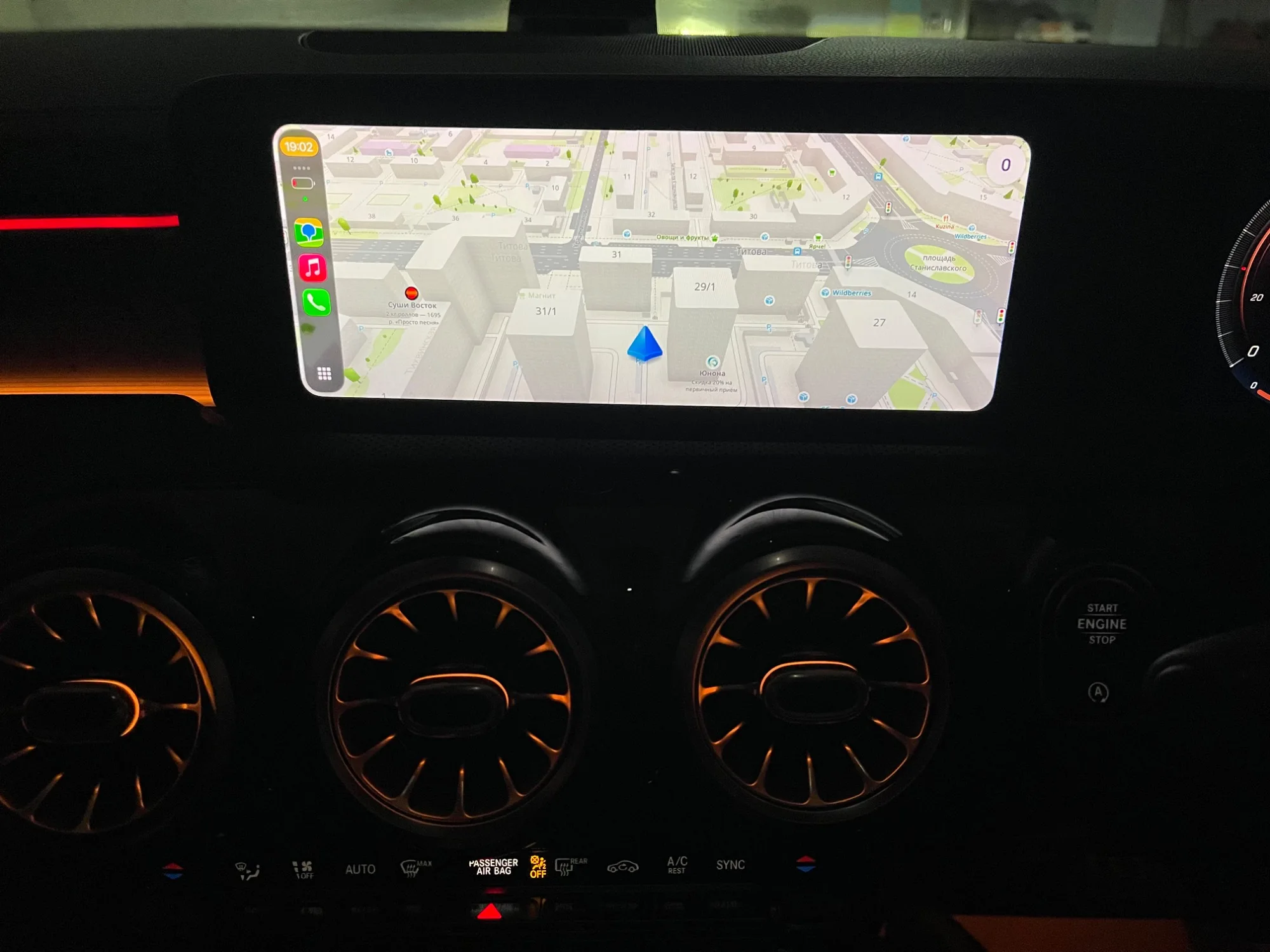
Perfect product, perhaps one of the best on the market! The seller is always ready to answer any questions!
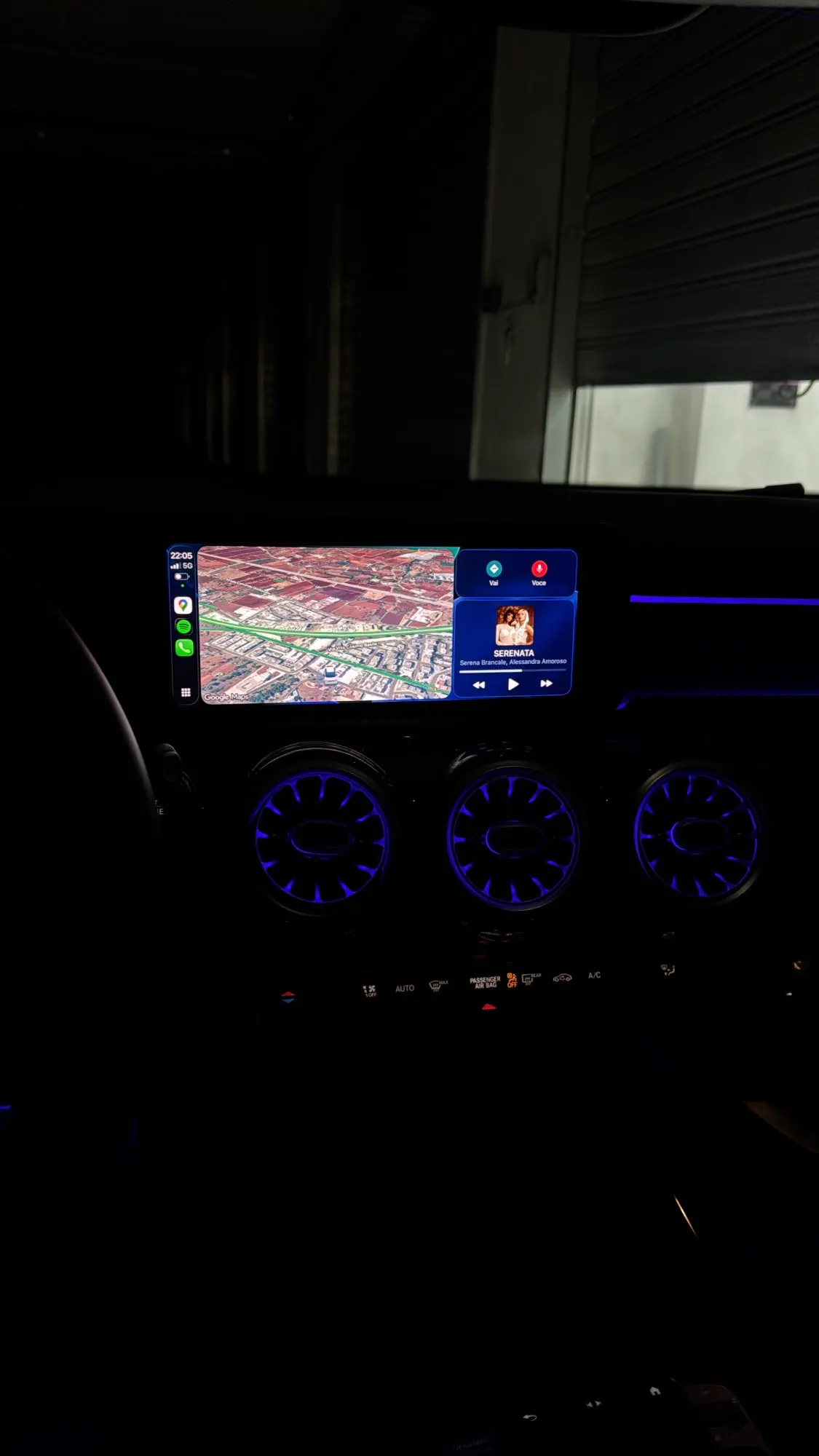
I just received it, now I just need to assemble it. Everything is well explained with an English manual that is easy to understand. I will install it on a 2022 Mercedes GLA 200D. All that's left is to………
An excellent device, serious and communicative seller, after the order he immediately made sure that it could work well with the machine's software.
Recommended! !
Fast delivery, good product, easy to install. I installed it myself, works perfectly. Carplay and airplay works wonders.