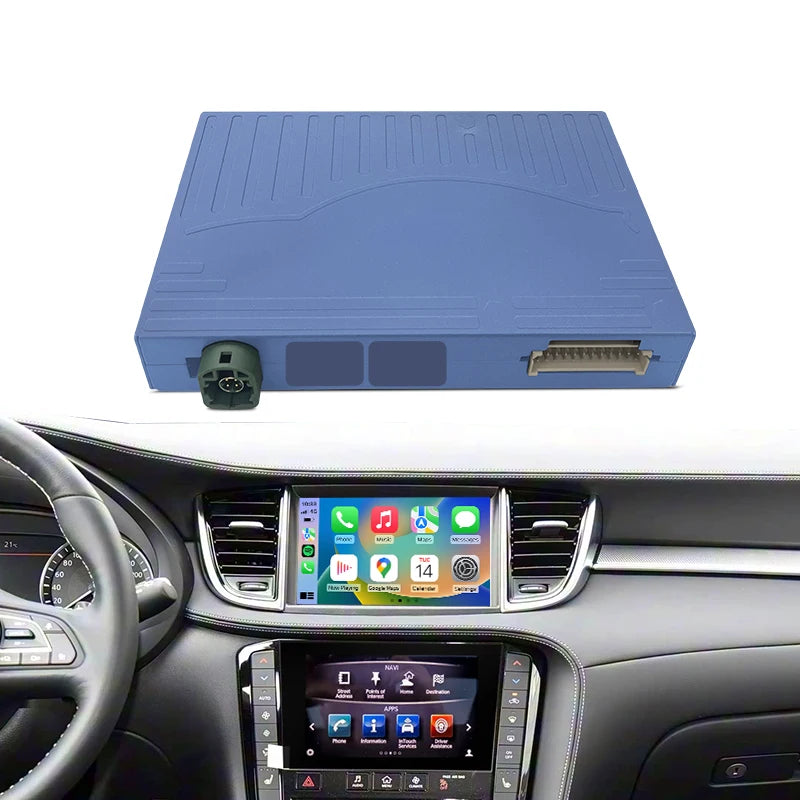
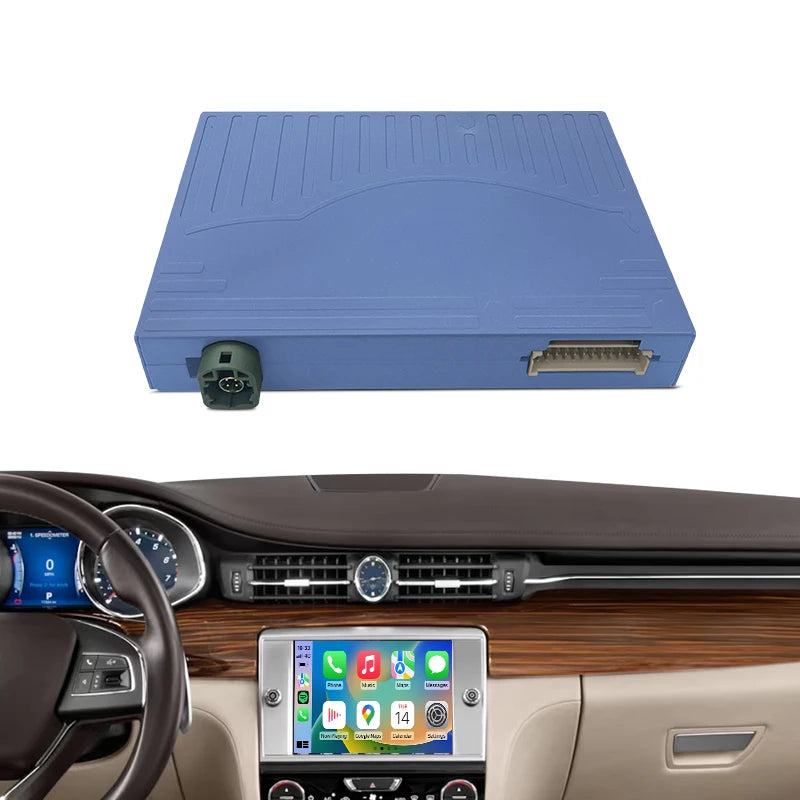
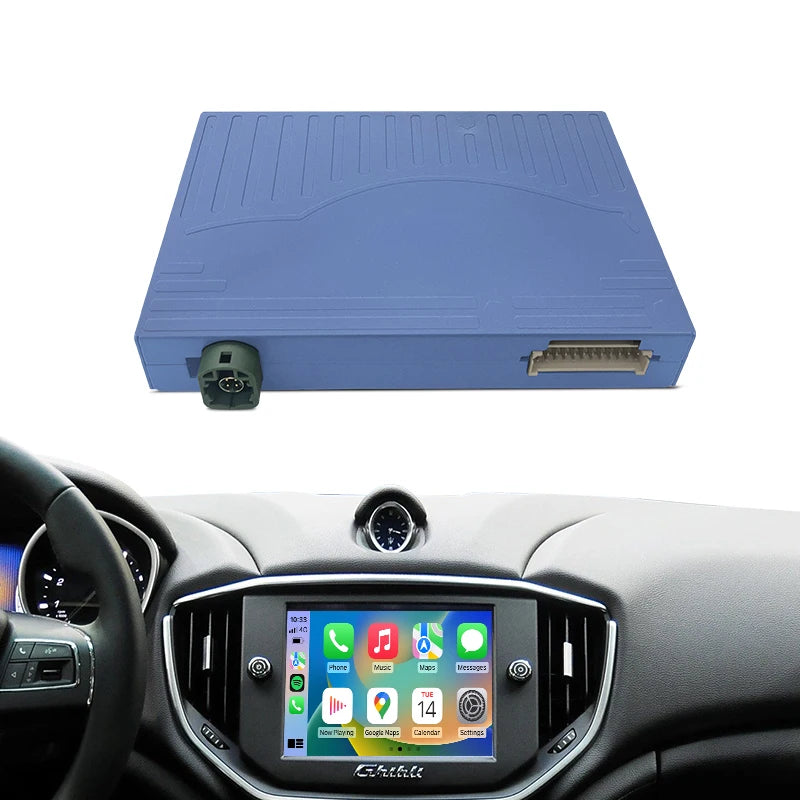
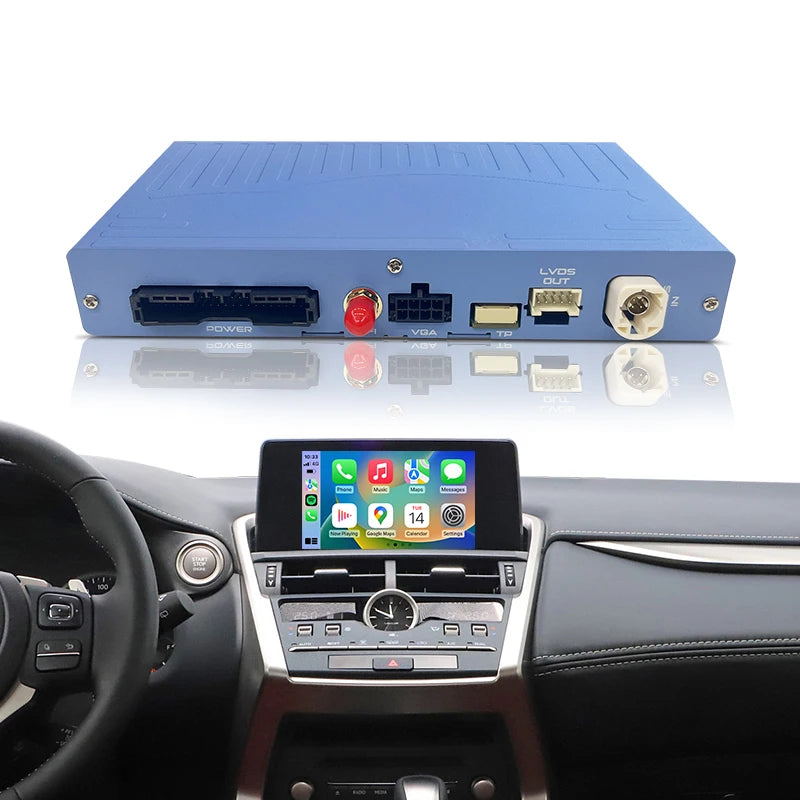
Compatibility Fitment
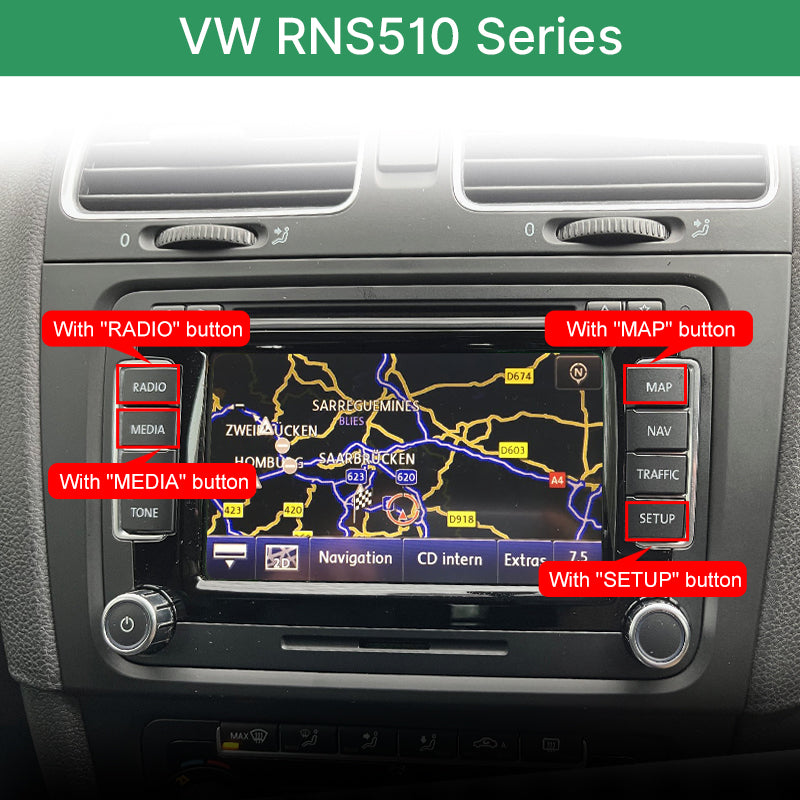
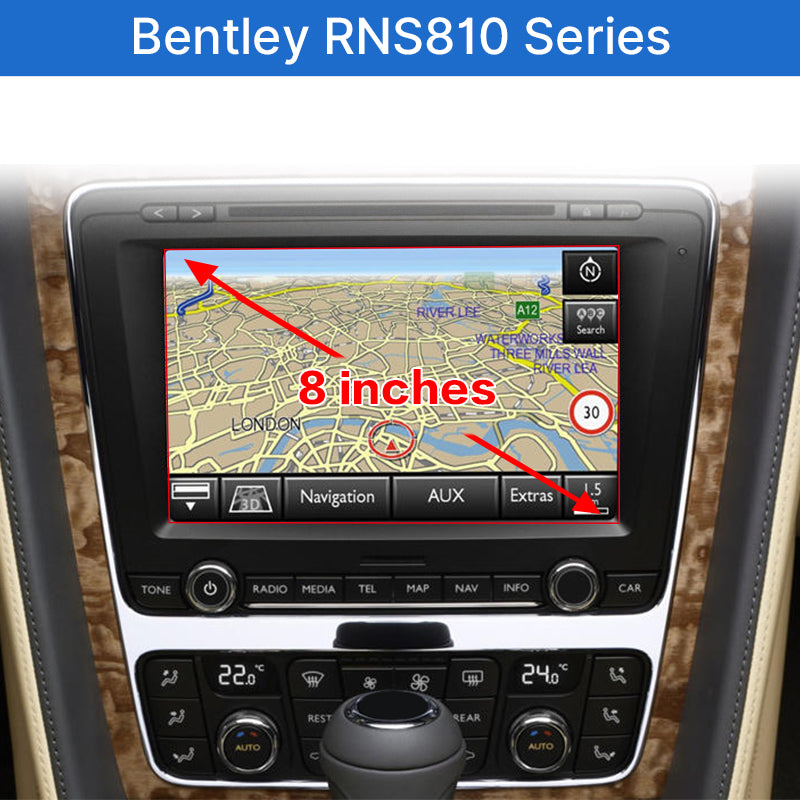
✅ Host Unit
- Volkswagen RNS510 OEM Navigation Head Unit
- Bentley RNS810 OEM Multimedia Navigation Head Unit
✅ Vehicle List
VW with RNS510: Phaeton 2009–2015, Golf 6, Passat B7, CC, Scirocco, Sharan, Touran, Transporter T5, Skoda Columbus
Bentley with RNS810: Continental GT / GTC 2011–2017, Flying Spur 2013–2018
⚠️ Important Notes
- Only compatible with vehicles originally equipped with RNS510 or RNS810 factory host. Please confirm your car radio model before purchase.
- Retains all factory features: steering wheel buttons, parking OPS, rear camera, original audio system.
- Not compatible with other non-RNS series head units.
🛠️ Frequently Asked Questions & Troubleshooting
Q: No sound after installation
A: Gen3 Sound Setting Mode-AUX :
- Step1: Setting - Factory Setting -About -Enter the password "8888" -Close the option " “Link Split Audio”-Save - Reboot
- Step2 : Disconnect the Bluetooth connection between the phone and the original car.
- Step3 : Choose the " Aux " as media source in factory media setting interface
Q: How do I fix the echo issue during phone calls (The other party hears an echo)?
A: This is a quick setting adjustment for ZTUZAUTO GEN3 modules.👉 Solution: Please go to Menu → Settings → Car → Microphone Mode, and change the option to "Auto Select".
Q: What should I do if the screen shows "No Signal," "Black Screen," or "Abnormal Display" after switching to CarPlay?
A: Please don't panic! This is usually a simple connection or setting issue. Check the following:
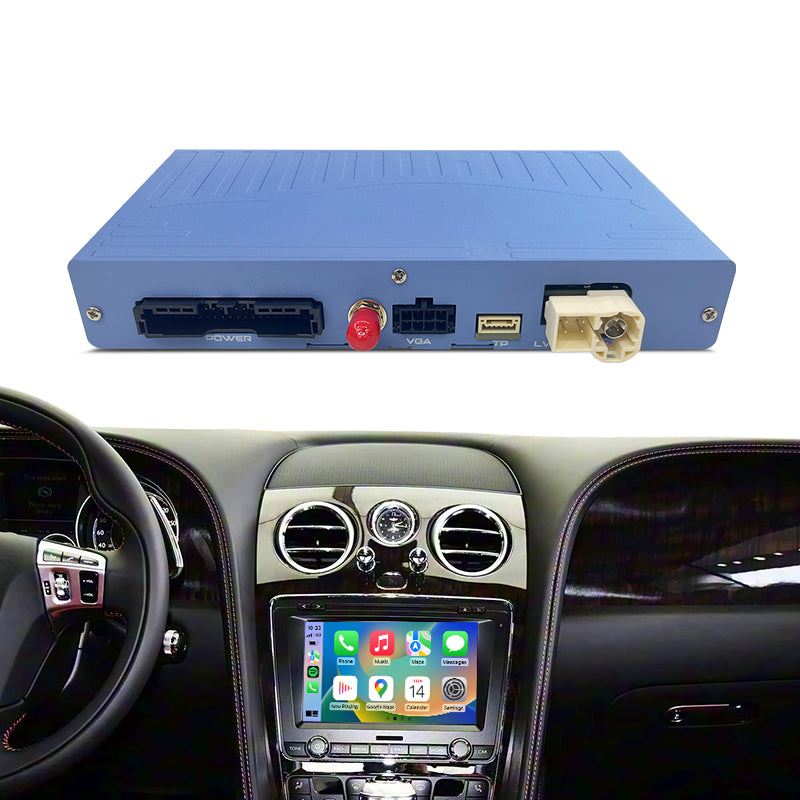
- LVDS Cable: Ensure the LVDS cable is connected correctly according to the schematic. The LVDS connection MUST be routed to the main head unit (host), NOT the transfer screen.
- Pin Check: Unplug the LCD cables and check if any pins inside the ports are bent or not making proper contact.
- DIP Switches: Verify that the DIP switch settings on the module box perfectly match your vehicle model according to the manual. (Note: Always keep the power ON when changing DIP switch settings).
- If everything is correct and the issue persists, please contact our support team.
Q: What precautions should I take during installation?
A:
- Always Power Off: Ensure your car is completely turned off before disconnecting or connecting any wiring harnesses.
- Test Before Reassembly: After plugging everything in, lock the car for a few minutes, then start it to test all functions (sound, display, steering wheel buttons). Do not reassemble the dashboard panels until you confirm everything works perfectly!
Q: I need technical support. What information should I provide?A: We are always here to help! To solve your problem quickly, please collect the following information before contacting us via WhatsApp or email:
- Your Order ID & Car Model / Year.
- Your original screen size (e.g., 7-inch).
- A clear picture of your current DIP switch setup on the box.
- A clear picture showing how your LVDS cables are connected.
- A picture of the module's System Version (Go to CarPlay menu → Settings → About).
After the upgrade is complete, you need to enter the module settings →Password:8888→ turn on the "Turn on Android Auto Resolution Adaptation " option → Save → Reboot
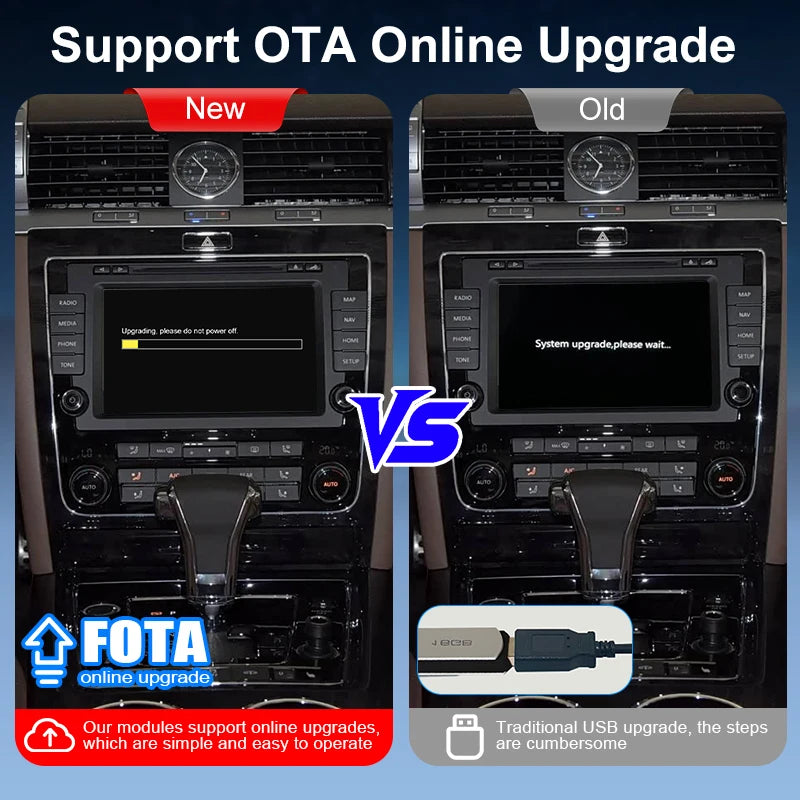
OTA Update Guide- ZTUZAUTO 3rd Gen CarPlay :
https://www.youtube.com/watch?v=ypzKC6BXMck
ZTUZAUTO 3rd Gen CarPlay upgrade steps :
Step1 : Navigate to [Settings] > [WIFI] and connect to the same wireless network as your phone.
Step2 : Access the [About] page, then select [System Upgrade] to enter the OTA upgrade interface. A QR code will be automatically displayed. If not, select [Refresh QR Code] to reload.
Step3 : Scan the QR code with your phone to open the upgrade page, which will indicate whether a new version is available or the device is already up to date.
Step4 : After completing the upgrade steps on the phone, the device will verify the upgrade file and automatically launch the corresponding upgrade program.





![[FINAL CLEARANCE] Wireless CarPlay & Android Auto Module for Porsche PCM 3.0 | OEM Screen Upgrade](http://www.ztuzauto.com/cdn/shop/files/2_11285e5a-2b45-48fd-b059-8f58b3fbc7c5.jpg?v=1793000939)